
Visual features
Open /b and select Visual. These options change what your client renders. Test them on a scene where the affected block, player, entity, or particle is visible.
Legit FME
Legit FME replaces block appearances locally. The actual block and server world remain unchanged. Edits are organized by profile and by Global, Locations, or Dungeon Rooms in the editor.
Legit FME overview
- Enable Legit FME and run
/b fme, or use its Editor button. The optional Open Editor keybind opens it even when rendering is disabled. - Choose a profile and scope in the editor. Global is for block-type rules; Locations and Dungeon Rooms hold context-specific edits. Stand inside a scanned dungeon room before editing that room.
- Choose the block appearance you want and create or edit a rule in the editor. For position edits, choose a location or room, select a replacement block, then select Edit Mode.
- In Edit Mode, right-click a block to replace its appearance, left-click to restore it, or middle-click to place a visual block where allowed. Opening a screen exits Edit Mode;
/b fme edittoggles it too. - Use
/b fme undoor/b fme redofor recent changes. The editor also has profile controls, context lists, tint controls, and per-rule removal./b fme clearclears edits in the active FME profile; use the editor’s per-context or per-rule removal for a smaller change.
If an edit is invisible, check that FME is enabled, the active profile and scope match the current location or dungeon room, and the rule is enabled. See Troubleshooting.
Fullbright
- Enable Fullbright under Visual.
- Enter a dark area and compare the scene with the feature off and on. Fullbright keeps the rendered world lit without changing Minecraft’s gamma setting.
If a shader or another rendering mod changes lighting, test with that effect disabled to isolate the visual result.
Particle Hider
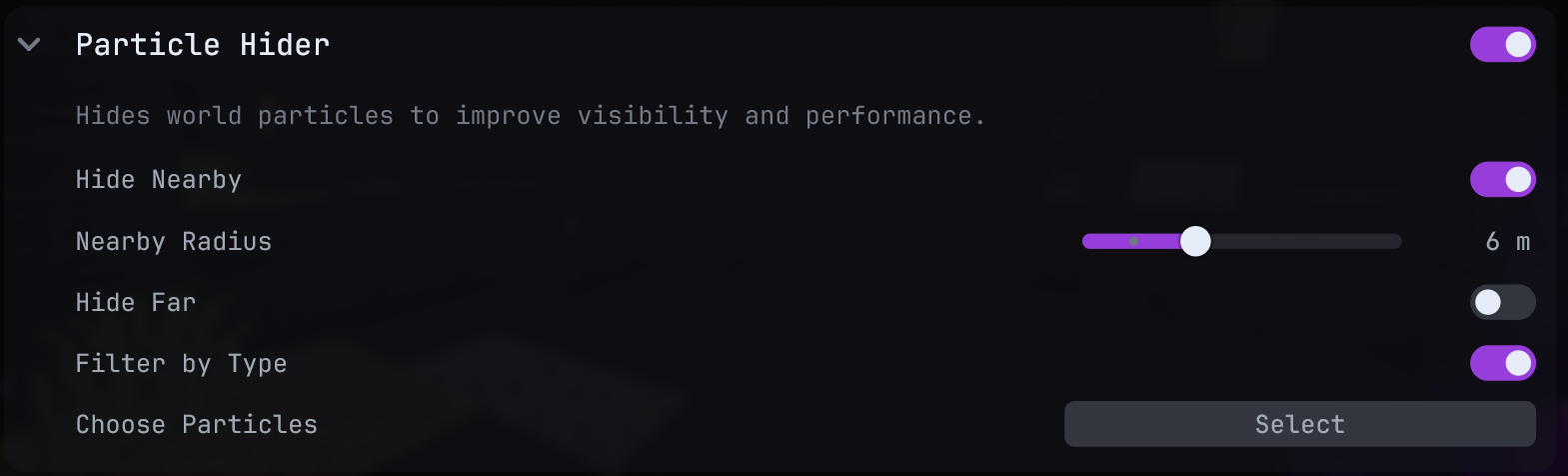 Particle Hider settings
- Enable Particle Hider. Hide Nearby removes particles within Nearby Radius (on by default); Hide Far removes particles beyond Max Distance.
- To remove only chosen types, turn on Filter by Type, open Choose Particles, and select the types. The type picker and distance filters can be combined.
- Test near a repeatable particle source. If nothing changes, check that at least one filter is active and that the particles are in its distance or type range.
Entity QoL
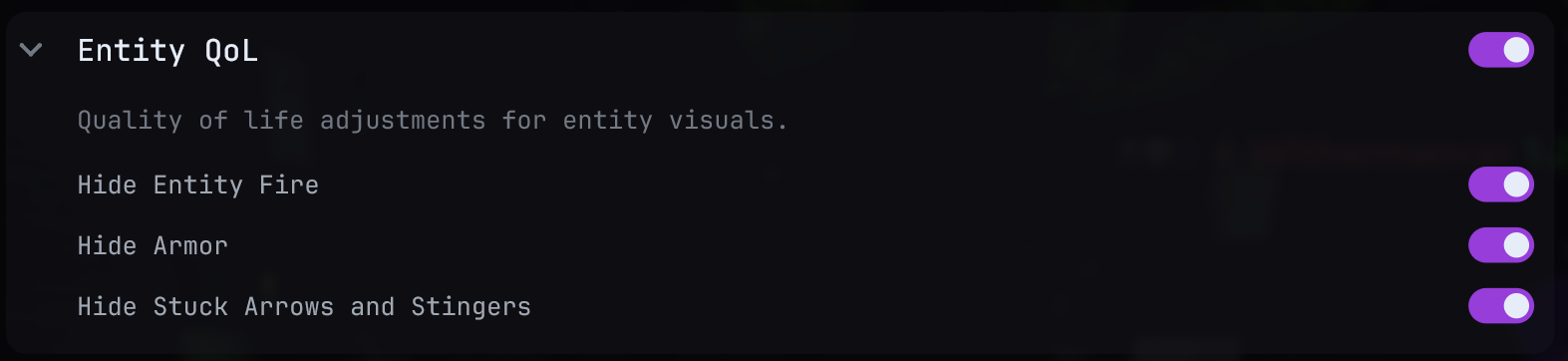 Entity QoL settings
- Enable Entity QoL.
- Use Hide Entity Fire for flames around burning entities; Hide Armor for worn armor on players, mobs, and armored animals; Hide Stuck Arrows and Stingers for projectiles embedded in player models.
- Inspect a relevant entity after changing one switch. Elytra and saddles remain visible with Hide Armor.
Player Size
- Enable Player Size and switch to a view where you can see your model.
- Change Width (X), Height (Y), and Depth (Z).
1is normal size;0flattens an axis, and a negative height flips your model. - Return each value to
1to restore normal proportions.
Custom Nickname
- Enable Custom Nickname and enter a Name.
- Choose Color, then inspect your own name over your head or in the tab list. An empty name keeps your real name.
This is a display change on your client, not a server username change.
Cosmetics
- Enable Cosmetics to display supported server cosmetics for players who own them.
- Toggle Show Other Players depending on whether you want to see other owners’ cosmetics or only your own.
- Test with an account that owns a cosmetic. If nothing is visible, verify ownership and the backend connection; enabling the feature does not grant a cosmetic.
China Hat
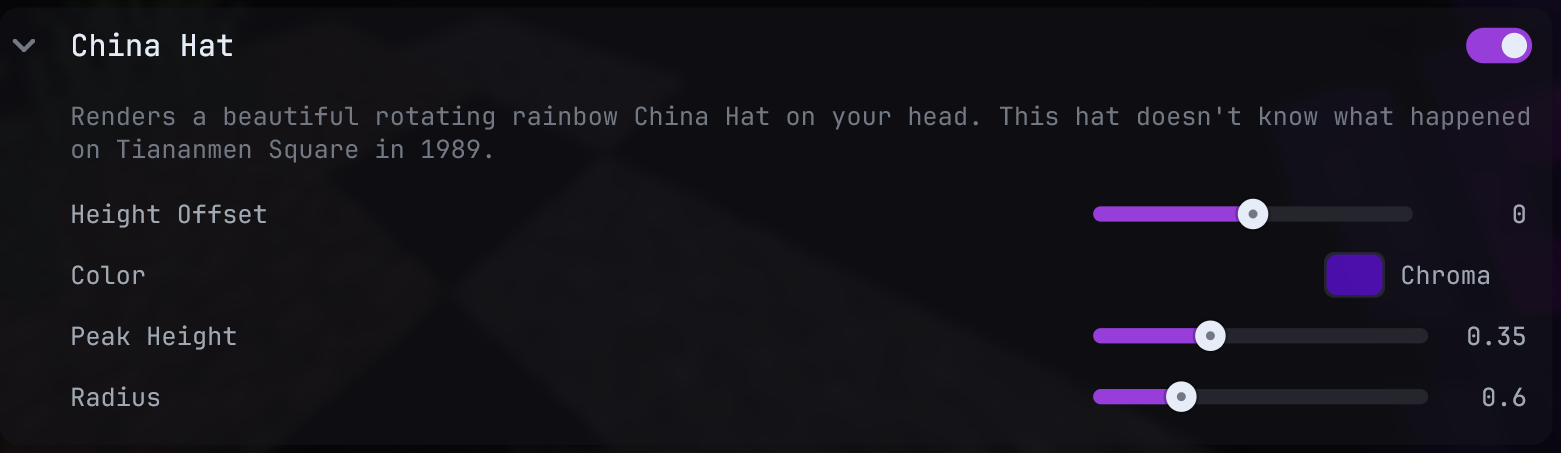 China Hat settings
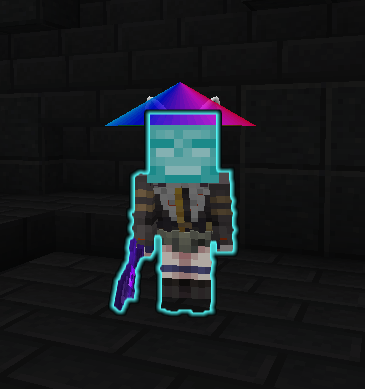 China Hat on a player model
- Enable China Hat and view your player in third person.
- Set Color (including Chroma for a rotating rainbow), Height Offset, Peak Height, and Radius until the hat sits as you want.