
Extras addon features
Install the Extras jar for the same Minecraft version as your main BlackAddons jar. It works alongside either main edition and adds an Extras section in /b. See Installation if the section is missing.
The following in-game capture shows both Skill Display and Stat Bars. The Skill Display appears after an XP gain; Stat Bars remain visible while the relevant SkyBlock stats are available.
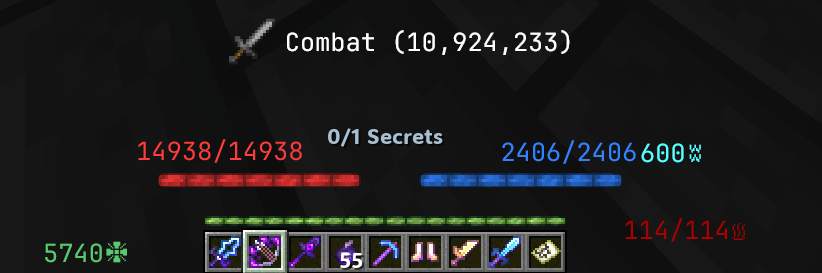 Skill Display and Stat Bars overlays
Skill Display
Skill Display turns SkyBlock’s transient skill-XP action bar segment into a movable HUD with an icon, skill name, and progress.
- Enable Skill Display in Extras and place its preview with
/b hud. - Gain skill XP on SkyBlock. The HUD appears for Fade Time seconds after the latest gain, then fades out.
- Change Skill Icon, Icon Size, Show Percent, and Color to suit your layout. With Hide From Action Bar on, the skill-XP segment is removed from the action bar while the new HUD shows it.
The display is intentionally absent between XP gains. Use the HUD Editor preview to check placement without waiting for a gain.
Stat Bars
Stat Bars reads SkyBlock’s action bar and draws separate movable elements for health, mana, defence, and optional vitality information.
- Enable Stat Bars and choose which pieces you want: Health Bar/Numbers, Effective HP, Mana Bar/Numbers, Mana Overflow, Defence Text, and Vitality Bar/Numbers.
- Open
/b hudand place the enabled pieces. Set Bar Width and colors in the feature row. - Hide Action Bar Stats removes only stats replaced by enabled HUD elements; other action bar information remains. The Hide Vanilla Hearts/Hunger/Armor switches affect the corresponding vanilla rows on SkyBlock.
- Test on SkyBlock when stats are present in the action bar. Vitality is intermittent and fades after you stop holding an item that provides it. In the Rift, the real vanilla health display remains available.
If a bar is blank, check the SkyBlock location, whether its sub-switch is on, and whether the server is sending that stat in the action bar.
Storage Overlay
Storage Overlay remembers the contents of ender-chest pages and storage backpacks as you open them. The offline browser and search operate on this per-account, per-profile cache.
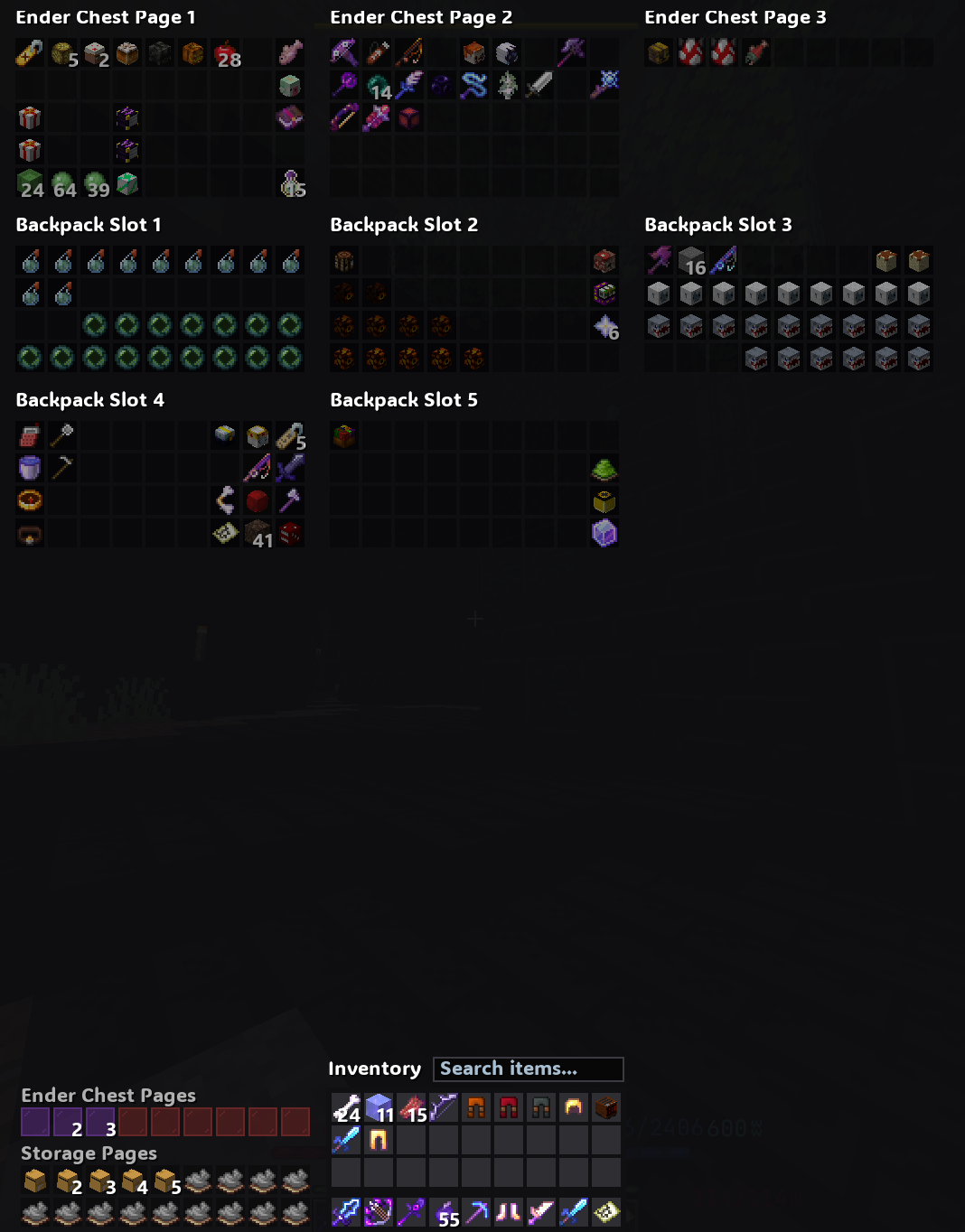 Storage browser and search overlay
- Enable Storage Overlay. Open each ender-chest page and backpack on SkyBlock at least once so the mod can capture its contents. An uncaptured page cannot show cached items.
- Leave Storage Browser on to draw the browser over the in-game Storage menu and pages. Search cached contents there; selecting a live page still asks the server to open that page.
- With /ec, /enderchest -> Storage on, bare
/ecand/enderchestopen the SkyBlock storage browser instead of only the vanilla ender chest./enderchest <page>still opens that page. - Use Clear Cache if the stored snapshot is wrong, then reopen the relevant pages to recapture them.
The cache is a snapshot, not a live inventory. Item moves in the currently open page use the real server container. See storage troubleshooting.