
Dungeon features
Open /b, choose Dungeons, and enable the feature you want. The Floor 7 section contains Simon Says and Solo Clears. Dungeon data appears only when the mod recognizes the relevant run or device. For movable elements, use /b hud while outside the run to place their preview.
Dungeon Map
The map is a movable HUD showing discovered rooms, teammates, and optional run information. Its score and secret goal are estimates based on detected state and your chosen assumptions.
Dungeon Map during a run
- Enable Dungeon Map under Dungeons. Open HUD Editor and place its preview where it will not cover the vanilla map or chat.
- Join a Catacombs run and watch rooms fill as they are discovered. Hide In Boss hides the overlay during the boss fight; turn it off if you want the map there.
- Set Player Names to Off, Holding Leap, or Always. Custom Marker replaces your own player head with a directional marker; Room Prediction predicts unopened 1x1 room types in legit mode.
- Turn on Extra Info to show secrets, crypts, score, deaths, and bonus indicators. The individual switches below it control which rows appear.
- Choose Calculation Method: Optimistic assumes perfect Speed and projected puzzle and bonus results for the S+ secret goal; Conservative uses elapsed time and current detected results. Review Max Bonus For Secret Goal, the crypt/mimic/prince/bat assumptions, and the Paul options if your goal differs from the sidebar score.
- Adjust map legibility with text/head/checkmark scale, background and border controls. Custom Background accepts a PNG, JPEG, WebP, or GIF selected with Background File.
If the map has no rooms, confirm you are in a recognized Catacombs run. If it is misplaced or hidden, check its HUD Editor preview and Hide In Boss. A score difference can come from calculation method, unfinished puzzles, the selected secret-goal assumptions, and the separate Solo Clears board score. See Troubleshooting.
Key Timer
Key Timer shows a temporary countdown for an uncollected Wither or Blood Key. It is not a permanent clock.
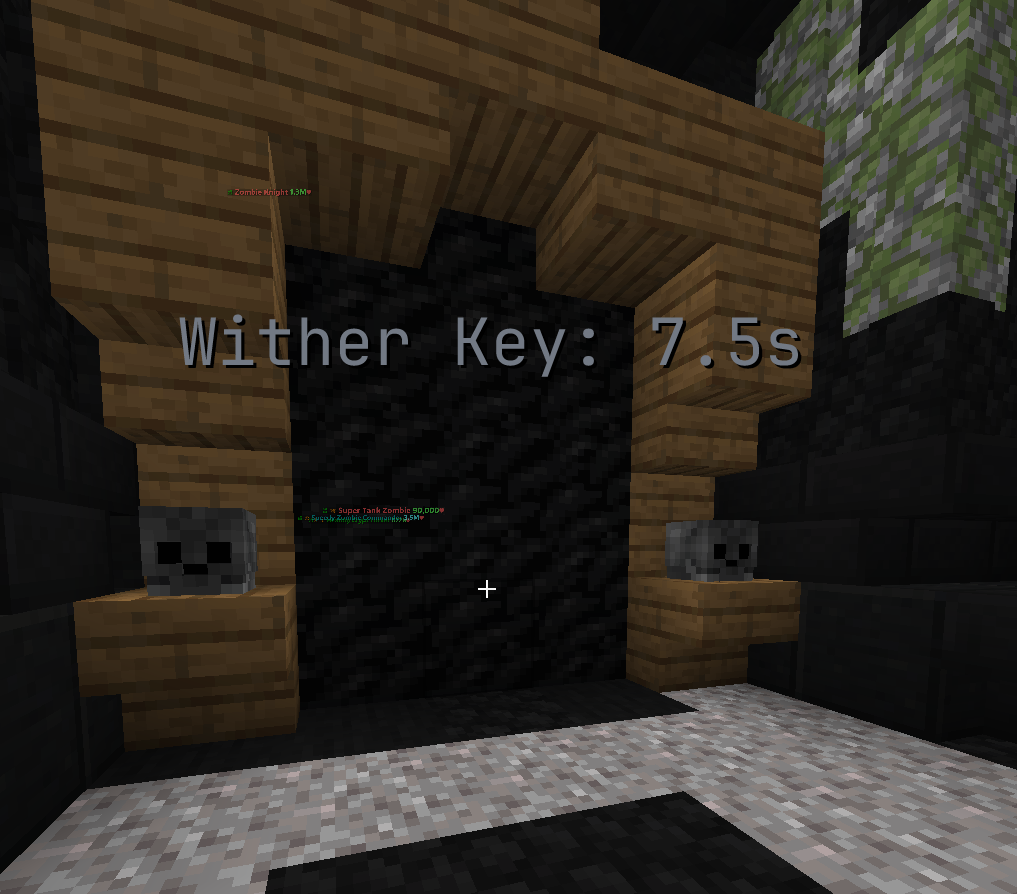 Wither Key countdown overlay
- Enable Key Timer under Dungeons and position its preview in
/b hud. - In a dungeon, wait for a Wither or Blood Key to appear. The HUD displays the key type and remaining pickup window.
- The timer ends when the key is picked up, its entity disappears, a door opens, or the window expires. It also clears on a world change.
If it is absent between key drops, that is expected. It needs a matching key entity in a dungeon.
Simon Says
Simon Says reads the F7/M7 device and highlights the button sequence in the world. The first, second, and later buttons have separate colors.
- Enable Simon Says in Dungeons > Floor 7 before reaching the device.
- At the Simon Says device, watch the highlighted order and click the shown buttons. Adjust First Color, Second Color, and Other Color if they blend into your resource pack.
- Optional: enable Block Wrong Clicks to cancel clicks on the wrong button. Sneak while clicking to override this protection.
- Use Reset Solver if the displayed pattern is out of step with the device; it forgets the pattern and reads it again.
- Configure Alerts Enabled, break/restart announcements, sound, title, and Print SS Time In Chat to choose what you see when the device resets or completes.
The Cheat edition adds automation controls to this same feature row; see Cheat edition. If highlights do not appear, verify the F7/M7 phase and that the device is active.
Solo Clears
Solo Clears watches eligible solo F7/M7 runs and attempts to submit a completed run to the BlackAddons leaderboard when its board score reaches 300.
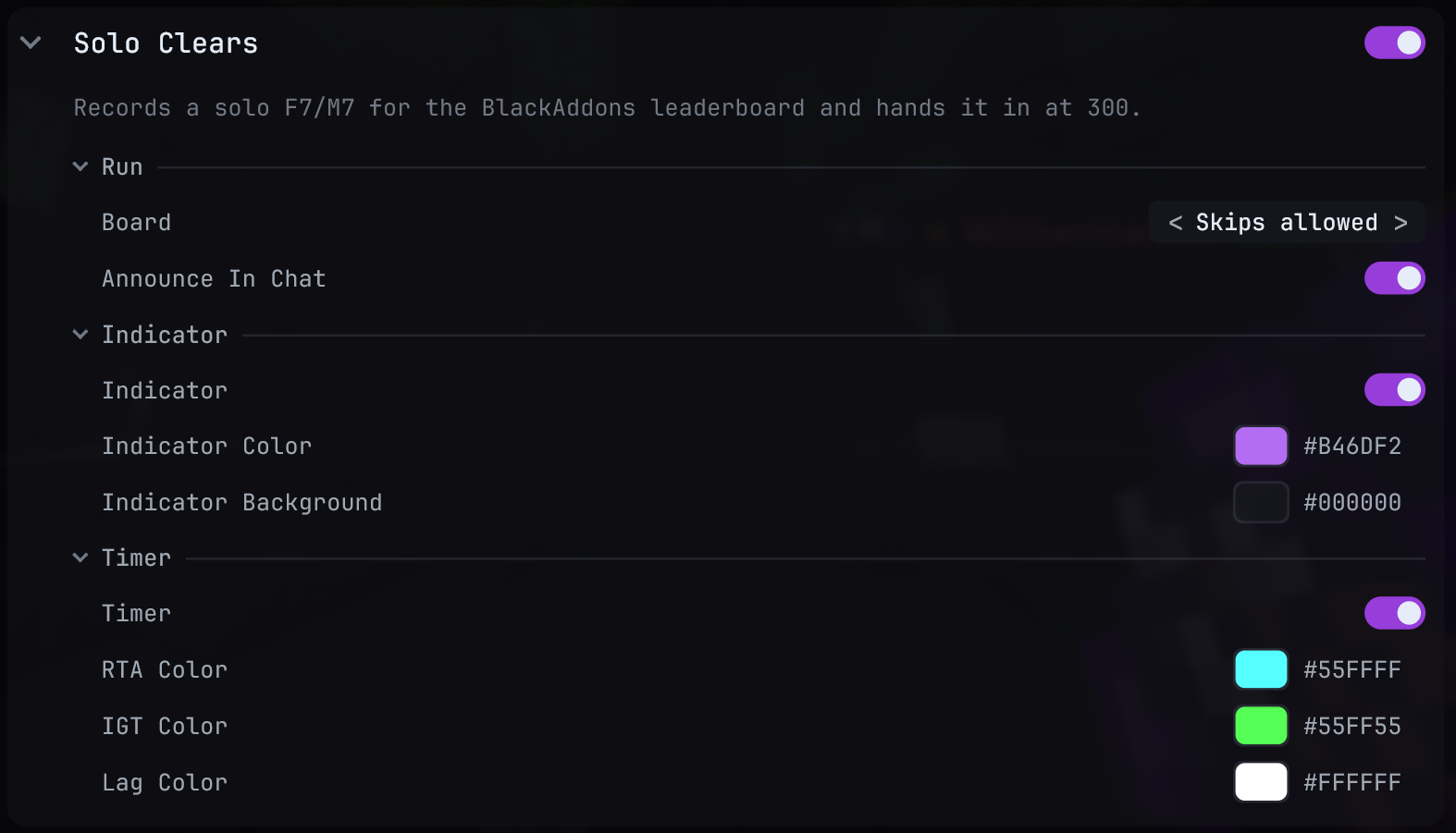 Solo Clears settings
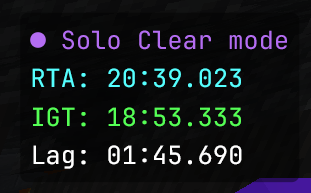 Solo Clears indicator and timer in game
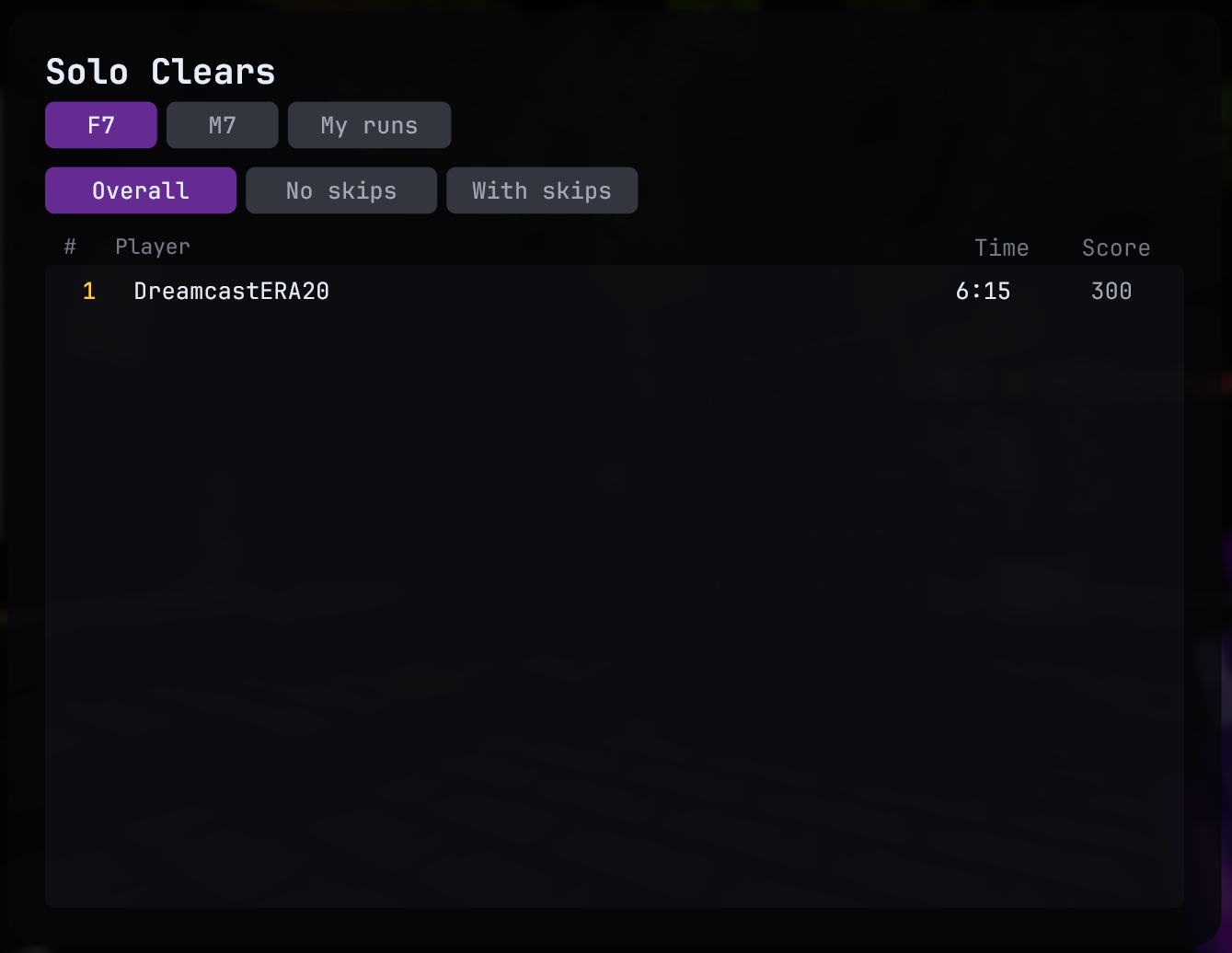 Solo Clears leaderboard screen
- Enable Solo Clears in Dungeons > Floor 7 before starting a solo run.
- Choose Board. Skips allowed forgives the quiz and ice fill for the on-screen target; No skips keeps those points in the target. The board score can differ from the game’s sidebar score.
- Keep Indicator on if you want a visible Solo Clear mode marker. Timer shows real time, in-game time, and lag. Move their shared HUD element with
/b hud. - Optionally leave Announce In Chat on to see when a run is opened and what happened to its submission.
- After a run, open
/b soloclears(or/b sc) to inspect boards and your runs, including a result that did not make a board.
An enabled feature does not guarantee a recording has started. The indicator distinguishes the armed state from a live run. If a submission fails, check the in-game result and backend connection; see Troubleshooting.