
Interface, Chat, and Client features
Open /b and select the named category. Keybinds inside a feature are separate from the Right Shift key that opens BlackAddons. Check Minecraft’s Controls menu if a key is also bound elsewhere.
Performance HUD (Interface)
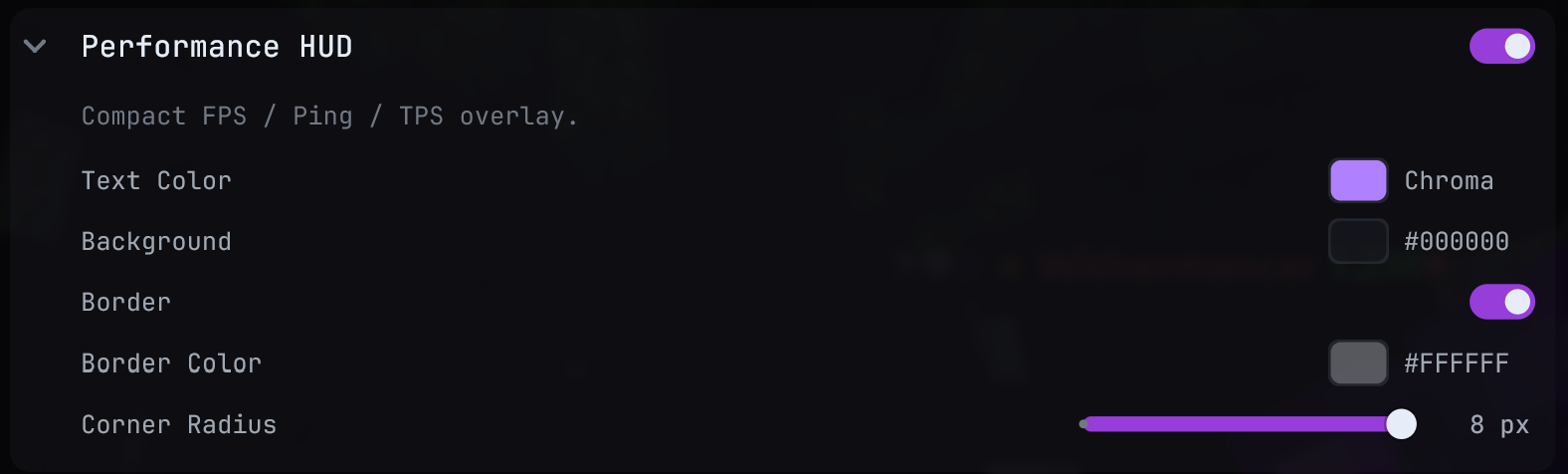 Performance HUD settings
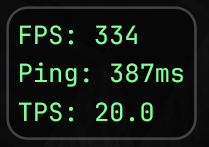 Performance HUD on screen
- Enable Performance HUD and open
/b hudto position its preview. - Return to the game to see FPS, ping, and TPS. Use Text Color, Background, Border, Border Color, and Corner Radius to make the panel legible.
- If a value is unavailable, check that you are connected to a world or server and compare with the other stats before reporting it.
Hotbar Keybinds (Interface)
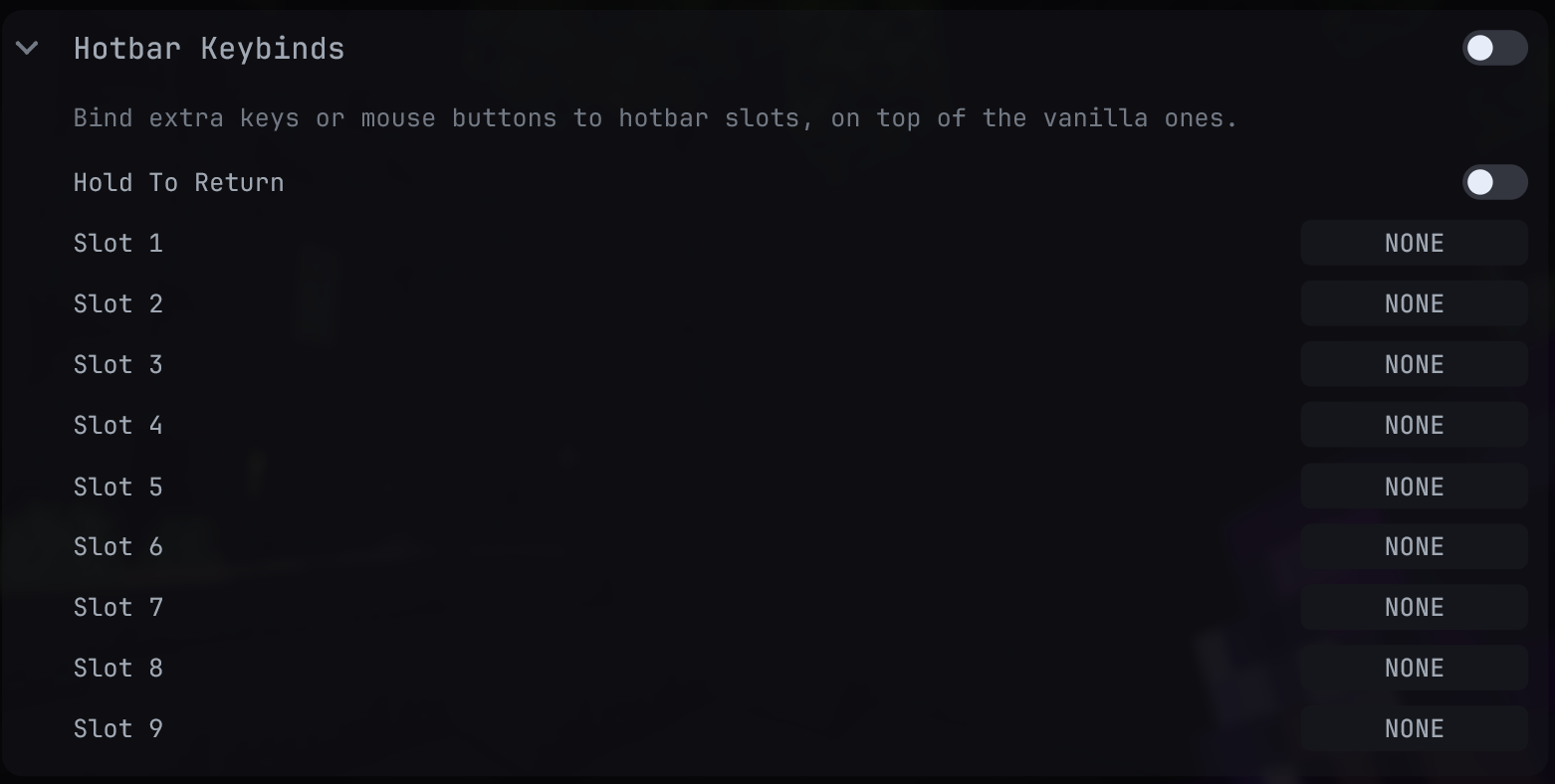 Hotbar Keybinds settings
- Enable Hotbar Keybinds and assign Slot 1 through Slot 9 only where you need an extra key or mouse button.
- Press a configured bind in game; the corresponding hotbar slot becomes selected.
- Turn on Hold To Return if you want the previous slot restored when you release that bind. Leave it off for ordinary selection.
If a bind seems ignored, check conflicting controls and try a different unused key.
Scoreboard Toggle (Interface)
 Scoreboard Toggle settings
- Enable Scoreboard Toggle. Show Scoreboard controls the current visibility of the sidebar.
- Assign Toggle Keybind to change visibility in world. Press it again to restore the sidebar.
The sidebar must exist in that game context to be visible; this feature does not create a scoreboard.
Tab List Toggle (Interface)
 Tab List Toggle settings
- Enable Tab List Toggle. With Toggle Mode off, the normal held player-list key controls visibility. With it on, tapping that key switches the list between shown and hidden.
- In Toggle Mode, assign Toggle Keybind if you want a separate key for the same switch. Test it in world, away from an open menu.
Screen QoL (Interface)
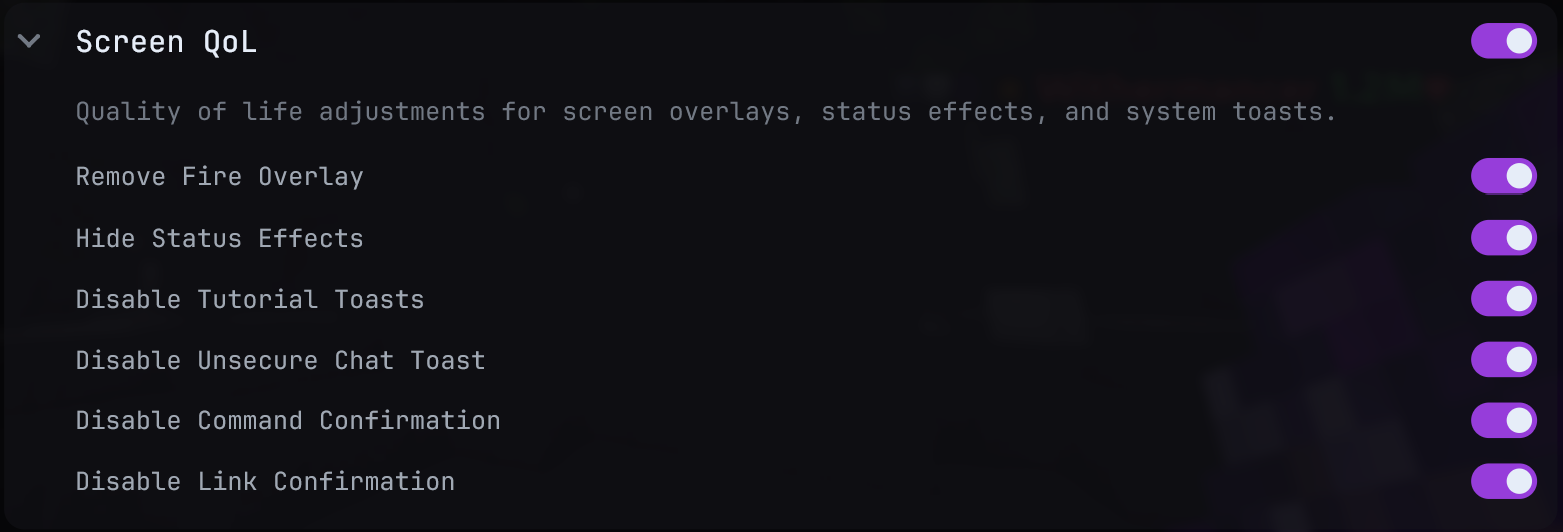 Screen QoL settings
- Enable Screen QoL and choose the individual changes you want.
- Remove Fire Overlay affects the fire on your screen; Hide Status Effects affects potion icons in the HUD and inventory.
- The toast controls suppress Minecraft tutorial and unsecure-chat toasts. Disable Command Confirmation and Disable Link Confirmation suppress the matching click prompts in chat.
- Test each switch with the matching event. A setting can be enabled without any visible change until its overlay, toast, or prompt would otherwise appear.
Screenshots (Interface)
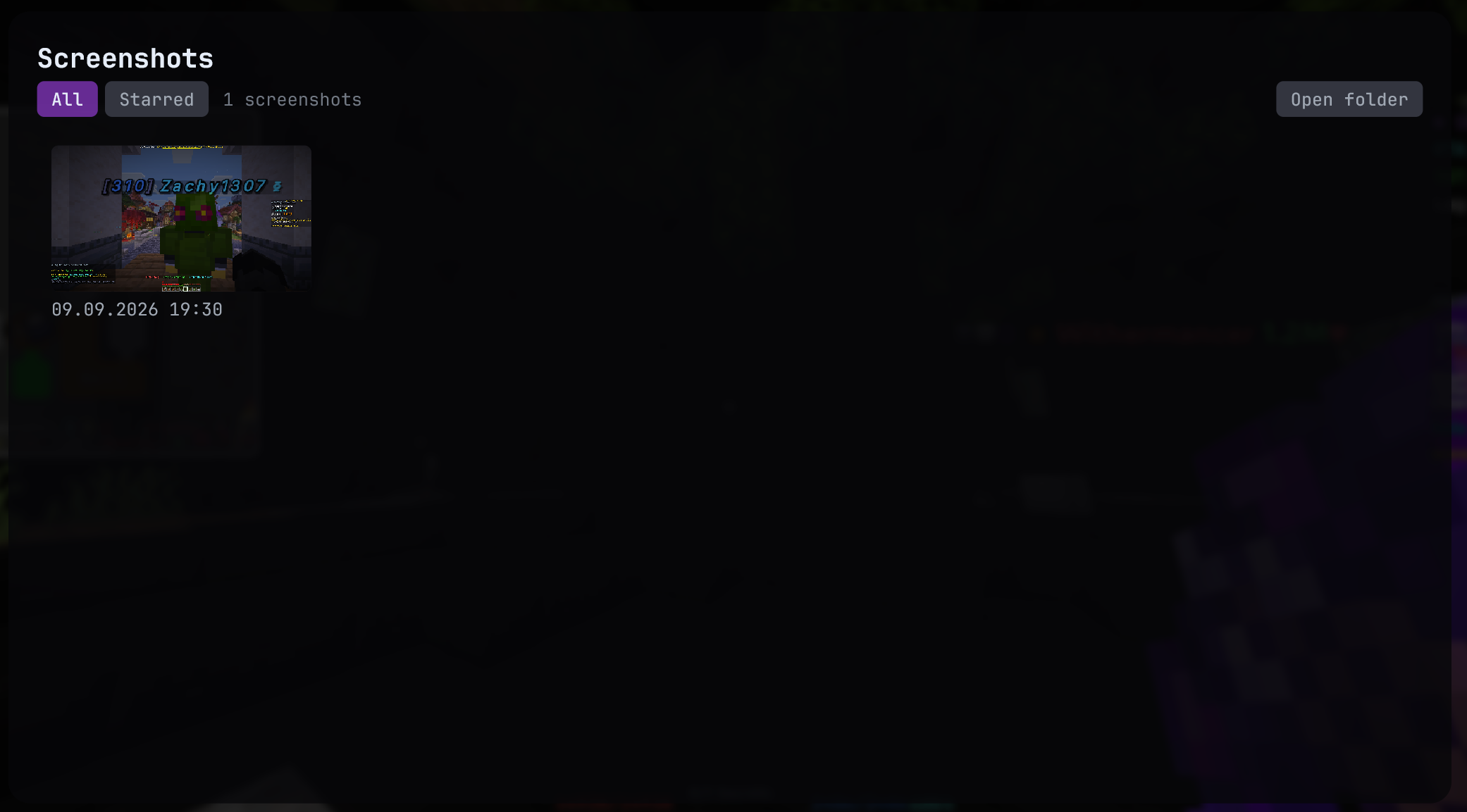 Screenshots gallery screen
- Enable Screenshots and take a normal Minecraft screenshot.
- When its preview notice appears, use Send to chat, Open, Copy, Star, or View. The separate Screenshots sidebar page and
/b screenshotsopen the gallery. - If you want Minecraft’s original screenshot chat line instead, disable this feature.
The preview may arrive shortly after the picture is saved while its thumbnail is prepared.
Chat Copy (Chat)
 Chat Copy settings
- Enable Chat Copy.
- Hold Ctrl and click a chat message to copy it. Hold Ctrl+Shift while clicking to retain Minecraft formatting codes.
- Paste into a safe local text field to check the result. The click must land on the message in the game chat.
Modlist Hider (Client)
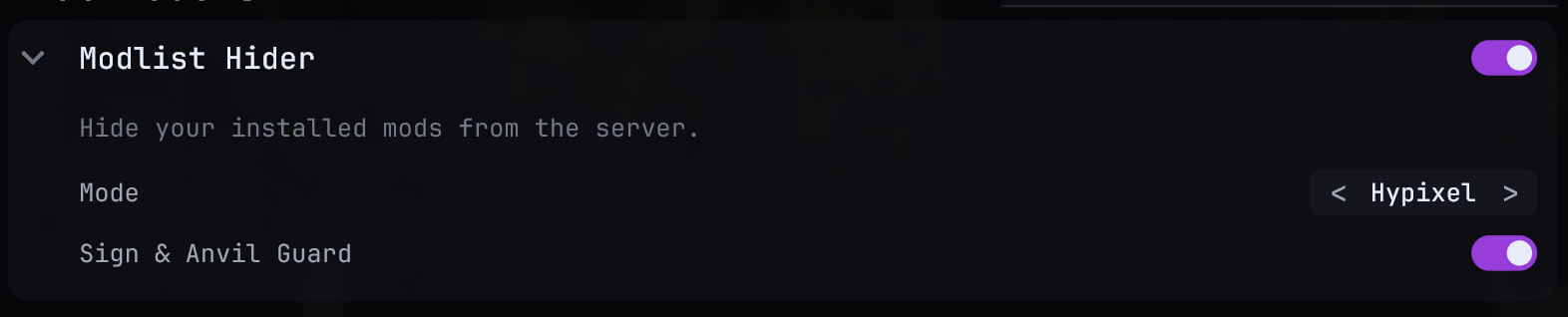 Modlist Hider settings
- Enable Modlist Hider and choose Mode. Hypixel keeps Hypixel’s own Mod API available; Vanilla hides that too; Custom uses your allowlists.
- In Custom mode, use Allowed Mods to select visible installed mods, and Allowed Channels if you filter custom payload channels. Custom Brand changes the brand sent in that mode.
- Leave Sign & Anvil Guard on if you want protection against mod probes through manipulated text components.
- If a server or another mod stops exchanging data after changing filters, restore a less restrictive mode or add the required channel, then reconnect to test the handshake again.
These controls govern specific client disclosures and messages; they do not promise invisibility from every possible server-side detection method.